
Introduction
Content Sliding website is one of the famous and creative design techniques for portfolio website. One thing, please make sure you put the menu on every single page to avoid confusion/dizziness.
- You should put the navigation menu in every single page
- Or, fix the position of the menu
- Let your visitors know exactly what section they're reading, like highlight the selected menu item and have a clear title
In this tutorial, we will learn to scroll your web content vertically, horizontally and plus diagonally! Don't worry, we won't rely on javascript too much, we will use css/html for the layout and javascript only do the scrolling. And hey, it will still work even if your browser doesn't support javascript.
And, thanks to Ariel Flesler, his scrollTo plugin is simply amazing!
1. HTML
Depend on which direction you want to scroll your website, each of them have slightly different layout. For the horizontal and vertical, they use the same layout, whereas for diagonal, you have to add extra div to create the "diagonal". It sounds like a dirty trick, but hey, it works! :)
I put <a name="name"></a>, just in case some of the browsers out there don't support javascript.
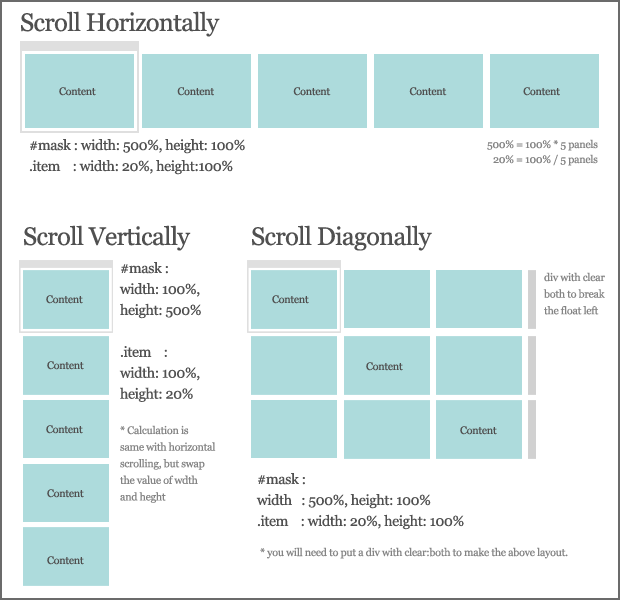
Scroll Horizontally & Vertically
<div id="wrapper">
	<div id="mask">

		<div id="item1" class="item">
			<a name="item1"></a>
			<div class="content">item1
				<a href="#item1" class="panel">1</a> |
				<a href="#item2" class="panel">2</a> |
				<a href="#item3" class="panel">3</a> |
				<a href="#item4" class="panel">4</a> |
				<a href="#item5" class="panel">5</a>
			</div>
		</div>

		<div id="item2" class="item">
			<a name="item2"></a>
			<div class="content">item2 <a href="#item1" class="panel">back</a></div>
		</div>

		<div id="item3" class="item">
			<a name="item3"></a>
			<div class="content">item3 <a href="#item1" class="panel">back</a></div>
		</div>

		<div id="item4" class="item">
			<a name="item4"></a>
			<div class="content">item4 <a href="#item1" class="panel">back</a></div>
		</div>

		<div id="item5" class="item">
			<a name="item5"></a>
			<div class="content">item5 <a href="#item1" class="panel">back</a></div>
		</div>

	</div>
</div>

<div id="wrapper">
	<div id="mask">

		<!-- first row -->

		<div id="item1" class="item">
			<a name="item1"></a>
			<div class="content">item1
				<a href="#item1" class="panel">1</a> |
				<a href="#item2" class="panel">2</a> |
				<a href="#item3" class="panel">3</a>
			</div>
		</div>

		<div class="item"></div>
		<div class="item"></div>
		<div class="clear"></div>

		<!-- second row -->

		<div class="item"></div>

		<div id="item2" class="item">
			<a name="item2"></a>
			<div class="content">item2 <a href="#item1" class="panel">back</a></div>
		</div>

		<div class="item"></div>
		<div class="clear"></div>

		<!-- third row -->

		<div class="item"></div>
		<div class="item"></div>

		<div id="item3" class="item">
			<a name="item3"></a>
			<div class="content">item3 <a href="#item1" class="panel">back</a></div>
		</div>

		<div class="clear"></div>

	</div>
</div>
<div id="wrapper">
	<div id="mask">

		<div id="item1" class="item">
			<a name="item1"></a>
			<div class="content">item1
				<a href="#item1" class="panel">1</a> |
				<a href="#item2" class="panel">2</a> |
				<a href="#item3" class="panel">3</a> |
				<a href="#item4" class="panel">4</a> |
				<a href="#item5" class="panel">5</a>
			</div>
		</div>

		<div id="item2" class="item">
			<a name="item2"></a>
			<div class="content">item2 <a href="#item1" class="panel">back</a></div>
		</div>

		<div id="item3" class="item">
			<a name="item3"></a>
			<div class="content">item3 <a href="#item1" class="panel">back</a></div>
		</div>

		<div id="item4" class="item">
			<a name="item4"></a>
			<div class="content">item4 <a href="#item1" class="panel">back</a></div>
		</div>

		<div id="item5" class="item">
			<a name="item5"></a>
			<div class="content">item5 <a href="#item1" class="panel">back</a></div>
		</div>

	</div>
</div>

<div id="wrapper">
	<div id="mask">

		<!-- first row -->

		<div id="item1" class="item">
			<a name="item1"></a>
			<div class="content">item1
				<a href="#item1" class="panel">1</a> |
				<a href="#item2" class="panel">2</a> |
				<a href="#item3" class="panel">3</a>
			</div>
		</div>

		<div class="item"></div>
		<div class="item"></div>
		<div class="clear"></div>

		<!-- second row -->

		<div class="item"></div>

		<div id="item2" class="item">
			<a name="item2"></a>
			<div class="content">item2 <a href="#item1" class="panel">back</a></div>
		</div>

		<div class="item"></div>
		<div class="clear"></div>

		<!-- third row -->

		<div class="item"></div>
		<div class="item"></div>

		<div id="item3" class="item">
			<a name="item3"></a>
			<div class="content">item3 <a href="#item1" class="panel">back</a></div>
		</div>

		<div class="clear"></div>

	</div>
</div>
Scroll Diagonally
<div id="wrapper">
	<div id="mask">

		<div id="item1" class="item">
			<a name="item1"></a>
			<div class="content">item1
				<a href="#item1" class="panel">1</a> |
				<a href="#item2" class="panel">2</a> |
				<a href="#item3" class="panel">3</a> |
				<a href="#item4" class="panel">4</a> |
				<a href="#item5" class="panel">5</a>
			</div>
		</div>

		<div id="item2" class="item">
			<a name="item2"></a>
			<div class="content">item2 <a href="#item1" class="panel">back</a></div>
		</div>

		<div id="item3" class="item">
			<a name="item3"></a>
			<div class="content">item3 <a href="#item1" class="panel">back</a></div>
		</div>

		<div id="item4" class="item">
			<a name="item4"></a>
			<div class="content">item4 <a href="#item1" class="panel">back</a></div>
		</div>

		<div id="item5" class="item">
			<a name="item5"></a>
			<div class="content">item5 <a href="#item1" class="panel">back</a></div>
		</div>

	</div>
</div>

<div id="wrapper">
	<div id="mask">

		<!-- first row -->

		<div id="item1" class="item">
			<a name="item1"></a>
			<div class="content">item1
				<a href="#item1" class="panel">1</a> |
				<a href="#item2" class="panel">2</a> |
				<a href="#item3" class="panel">3</a>
			</div>
		</div>

		<div class="item"></div>
		<div class="item"></div>
		<div class="clear"></div>

		<!-- second row -->

		<div class="item"></div>

		<div id="item2" class="item">
			<a name="item2"></a>
			<div class="content">item2 <a href="#item1" class="panel">back</a></div>
		</div>

		<div class="item"></div>
		<div class="clear"></div>

		<!-- third row -->

		<div class="item"></div>
		<div class="item"></div>

		<div id="item3" class="item">
			<a name="item3"></a>
			<div class="content">item3 <a href="#item1" class="panel">back</a></div>
		</div>

		<div class="clear"></div>

	</div>
</div>
<div id="wrapper">
	<div id="mask">

		<div id="item1" class="item">
			<a name="item1"></a>
			<div class="content">item1
				<a href="#item1" class="panel">1</a> |
				<a href="#item2" class="panel">2</a> |
				<a href="#item3" class="panel">3</a> |
				<a href="#item4" class="panel">4</a> |
				<a href="#item5" class="panel">5</a>
			</div>
		</div>

		<div id="item2" class="item">
			<a name="item2"></a>
			<div class="content">item2 <a href="#item1" class="panel">back</a></div>
		</div>

		<div id="item3" class="item">
			<a name="item3"></a>
			<div class="content">item3 <a href="#item1" class="panel">back</a></div>
		</div>

		<div id="item4" class="item">
			<a name="item4"></a>
			<div class="content">item4 <a href="#item1" class="panel">back</a></div>
		</div>

		<div id="item5" class="item">
			<a name="item5"></a>
			<div class="content">item5 <a href="#item1" class="panel">back</a></div>
		</div>

	</div>
</div>

<div id="wrapper">
	<div id="mask">

		<!-- first row -->

		<div id="item1" class="item">
			<a name="item1"></a>
			<div class="content">item1
				<a href="#item1" class="panel">1</a> |
				<a href="#item2" class="panel">2</a> |
				<a href="#item3" class="panel">3</a>
			</div>
		</div>

		<div class="item"></div>
		<div class="item"></div>
		<div class="clear"></div>

		<!-- second row -->

		<div class="item"></div>

		<div id="item2" class="item">
			<a name="item2"></a>
			<div class="content">item2 <a href="#item1" class="panel">back</a></div>
		</div>

		<div class="item"></div>
		<div class="clear"></div>

		<!-- third row -->

		<div class="item"></div>
		<div class="item"></div>

		<div id="item3" class="item">
			<a name="item3"></a>
			<div class="content">item3 <a href="#item1" class="panel">back</a></div>
		</div>

		<div class="clear"></div>

	</div>
</div>
2. CSS
The CSS is basically almost the same with the tabbed based content slider tutorial. I have illustrated how it works in that tutorial, so you might wanna check that out as well.
Scroll Horizontally & Diagonally
Â
- #mask : height=100%, width = 100% * total of items
- .item : height=100%, width = 100% / total of items
body {
	height:100%;
	width:100%;
	margin:0;padding:0;
}

#wrapper {
	width:100%;
	height:100%;
	position:absolute;
	top:0;left:0;
	background-color:#ccc;
	overflow:hidden;
}

	#mask {
		width:500%;
		height:100%;

		background-color:#eee;
	}

	.item {
		width:20%;
		height:100%;
		float:left;
		background-color:#ddd;
	}


	.content {
		width:400px;
		height:300px;
		top:20%;
		margin:0 auto;
		background-color:#aaa;
		position:relative;
	}

	.selected {
		background:#fff;
		font-weight:700;
	}

	.clear {
		clear:both;
	}
Scroll Vertically
The width and height are opposite from scrolling horizontally. Calculations are:
- #mask : width=100%, height = 100% * total of items
- .item : width=100%, height = 100% / total of items
	#mask {
		width:100%;
		height:500%;
		background-color:#eee;
	}

	.item {
		width:100%;
		height:20%;
		float:left;
		background-color:#ddd;
	}
3. Javascript
So, you must be thinking how complicated the javascript would be. You'll be surprise! its only a line of code to make the scrolling effect. Thanks to jquery.scrollTo Plugin. What we have to do is solve the layout using css/html, and the plugin will do the rest.
$(document).ready(function() {

	//get all link with class panel
	$('a.panel').click(function () {

                //reset and highlight the clicked link
		$('a.panel').removeClass('selected');
		$(this).addClass('selected');

		//grab the current item, to be used in resize function
		current = $(this);

                //scroll it to the destination
		$('#wrapper').scrollTo($(this).attr('href'), 800);

                //cancel the link default behavior
		return false;
	});


	//resize all the items according to the new browser size
	$(window).resize(function () {

		//call the resizePanel function
		resizePanel();
	});

});
This resize function have 2 versions. One for vertical and another for both horizontal and diagonal. The only difference is the mask_height and mask_width.
Verticalfunction resizePanel() {
//get the browser width and height
width = $(window).width();
height = $(window).height();
//get the mask height: height * total of items
mask_height = height * $('.item').length;
//set the dimension
$('#wrapper, .item').css({width: width, height: height});
$('#mask').css({width: width, height: mask_height});
//if the item is displayed incorrectly, set it to the corrent pos
$('#wrapper').scrollTo($('a.selected').attr('href'), 0);
}
Horizontal & Diagonal
function resizePanel() {

	//get the browser width and height
	width = $(window).width();
	height = $(window).height();

	//get the mask width: width * total of items
	mask_width = width * $('.item').length;

	//set the dimension
	$('#wrapper, .item').css({width: width, height: height});
	$('#mask').css({width: mask_width, height: height});

	//if the item is displayed incorrectly, set it to the corrent pos
	$('#wrapper').scrollTo($('a.selected').attr('href'), 0);

}
Conclusion
That's it, simple and easy! I hope you all will enjoy it.
Last but not least, I need your support :) If you like this article, please help me to promote it by adding this post into your bookmark. You can subscribe to my RSS for more jQuery tutorial posts! Or go to my website footer to follow me on twitter, and buy me a drink! Thanks!
Jump to Certain Item on Page Load
This is one of the most popular request. A lot of people want this content slider to display certain item on page load. It's simple, you need to use this:
$(document).ready(function () {

   $('#wrapper').scrollTo('ITEM-ID-HERE', 0);

   ......
   ......
   ......
}
With that line of code, the slider will jump to the item on page load.

Comments will be moderated and
rel="nofollow"will be added to all links. You can wrap your coding with[code][/code]to make use of built-in syntax highlighter.#wrapper {
.......
overflow: auto;
}
Thank you dude, it is working perfect.
Many thanks man.
i have a question... i'm trying to use sprites to show social media icons and my logo on top of the page (stationery position), which works well. I'm also using CSS/Sprite to give roll-over effect to the logo and social icons. BUT, I've noticed that independent of your code, the rollover works, but when i have them in your page, they dont. not only doesnt the pointer change to a finger, but nothing happens... no link, no image change!!
in trying to isolate this, i commented code out, and relized that if the "wrapper" div is not there, it works... once this div comes into play, the rollovers dont work. any ideas?
thanks
SAMPLE TEST PAGES:
---------------------------------------
test1: http://www.graphicwise.com/clients/dev/test1.html
test2: http://www.graphicwise.com/clients/dev/test1.html
The code for the rollovers is:
CSS:
--------------------------------------
#smm-facebook { display: block; width: 22px; height: 22px; background: url(images/social-fb-norm.png) no-repeat 0 0; float: left; padding-right: 10px; }
#smm-facebook:hover { background-position: 0 -22px; }
#smm-facebook span { position: absolute; top: -999em;}
#socialmedia { position: absolute; top: 44px; right: 5%; width: 96px; height: 22px; }
HTML:
--------------------------------------
<div id="socialmedia">
<a id="smm-facebook" href="http://www.graphicwise.com/clients/dev/test1.html " title="Facebook"><span>Facebook</span></a>
</div>
Problem is that #wrapper was covering all other divs out there... so I gave my social media div (#socialmedia) a z-index of 10, and it worked. Now it's sitting on top and fully functional.
I'm using the vertical scroll and was wondering if easing controls can be added? can't seem to work it out...
any help would be greatly appreciated ;)
you can see it has a demo for easing.
You will need to read the documentation from that website.
Do I need to have all site content (all pages/sections) in just one html page? I'm just concerned about loading times...
Is it possible to have a jQuery image gallery contained in one item/section?
I'd reallly appreciate any help and advise :)
One question though: how can I make it so that if I use content div's of any size (let's say 600px by 600px), that on every size screen they show up perfectly centered (both vertically and horizontally)? If it matters, I made a page with 9 div's, aligned in a square of 3 by 3.
http://stackoverflow.com/questions/982054/how-to-center-html-element-in-browser-window
http://stackoverflow.com/questions/982054/how-to-center-html-element-in-browser-window
Hereby whatever I changed it into (for whoever is interested). I used the width of 700px and height as 600px as an example. Only these and the two margin variables need to be changed if you change the width and height. Seems to work excellently cross-browser:
.content {
width:700px;
height:600px;
background-color:#fff;
position:relative;
left:50%;
top:50%;
margin:-300px 0 0 -350px;
}
Thank you.