
Introduction
Content Sliding website is one of the famous and creative design techniques for portfolio website. One thing, please make sure you put the menu on every single page to avoid confusion/dizziness.
- You should put the navigation menu in every single page
- Or, fix the position of the menu
- Let your visitors know exactly what section they're reading, like highlight the selected menu item and have a clear title
In this tutorial, we will learn to scroll your web content vertically, horizontally and plus diagonally! Don't worry, we won't rely on javascript too much, we will use css/html for the layout and javascript only do the scrolling. And hey, it will still work even if your browser doesn't support javascript.
And, thanks to Ariel Flesler, his scrollTo plugin is simply amazing!
1. HTML
Depend on which direction you want to scroll your website, each of them have slightly different layout. For the horizontal and vertical, they use the same layout, whereas for diagonal, you have to add extra div to create the "diagonal". It sounds like a dirty trick, but hey, it works! :)
I put <a name="name"></a>, just in case some of the browsers out there don't support javascript.
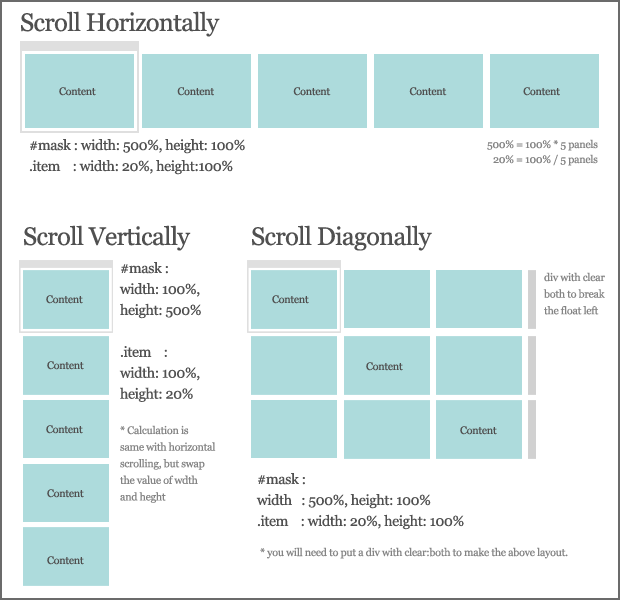
Scroll Horizontally & Vertically
<div id="wrapper">
	<div id="mask">

		<div id="item1" class="item">
			<a name="item1"></a>
			<div class="content">item1
				<a href="#item1" class="panel">1</a> |
				<a href="#item2" class="panel">2</a> |
				<a href="#item3" class="panel">3</a> |
				<a href="#item4" class="panel">4</a> |
				<a href="#item5" class="panel">5</a>
			</div>
		</div>

		<div id="item2" class="item">
			<a name="item2"></a>
			<div class="content">item2 <a href="#item1" class="panel">back</a></div>
		</div>

		<div id="item3" class="item">
			<a name="item3"></a>
			<div class="content">item3 <a href="#item1" class="panel">back</a></div>
		</div>

		<div id="item4" class="item">
			<a name="item4"></a>
			<div class="content">item4 <a href="#item1" class="panel">back</a></div>
		</div>

		<div id="item5" class="item">
			<a name="item5"></a>
			<div class="content">item5 <a href="#item1" class="panel">back</a></div>
		</div>

	</div>
</div>

<div id="wrapper">
	<div id="mask">

		<!-- first row -->

		<div id="item1" class="item">
			<a name="item1"></a>
			<div class="content">item1
				<a href="#item1" class="panel">1</a> |
				<a href="#item2" class="panel">2</a> |
				<a href="#item3" class="panel">3</a>
			</div>
		</div>

		<div class="item"></div>
		<div class="item"></div>
		<div class="clear"></div>

		<!-- second row -->

		<div class="item"></div>

		<div id="item2" class="item">
			<a name="item2"></a>
			<div class="content">item2 <a href="#item1" class="panel">back</a></div>
		</div>

		<div class="item"></div>
		<div class="clear"></div>

		<!-- third row -->

		<div class="item"></div>
		<div class="item"></div>

		<div id="item3" class="item">
			<a name="item3"></a>
			<div class="content">item3 <a href="#item1" class="panel">back</a></div>
		</div>

		<div class="clear"></div>

	</div>
</div>
<div id="wrapper">
	<div id="mask">

		<div id="item1" class="item">
			<a name="item1"></a>
			<div class="content">item1
				<a href="#item1" class="panel">1</a> |
				<a href="#item2" class="panel">2</a> |
				<a href="#item3" class="panel">3</a> |
				<a href="#item4" class="panel">4</a> |
				<a href="#item5" class="panel">5</a>
			</div>
		</div>

		<div id="item2" class="item">
			<a name="item2"></a>
			<div class="content">item2 <a href="#item1" class="panel">back</a></div>
		</div>

		<div id="item3" class="item">
			<a name="item3"></a>
			<div class="content">item3 <a href="#item1" class="panel">back</a></div>
		</div>

		<div id="item4" class="item">
			<a name="item4"></a>
			<div class="content">item4 <a href="#item1" class="panel">back</a></div>
		</div>

		<div id="item5" class="item">
			<a name="item5"></a>
			<div class="content">item5 <a href="#item1" class="panel">back</a></div>
		</div>

	</div>
</div>

<div id="wrapper">
	<div id="mask">

		<!-- first row -->

		<div id="item1" class="item">
			<a name="item1"></a>
			<div class="content">item1
				<a href="#item1" class="panel">1</a> |
				<a href="#item2" class="panel">2</a> |
				<a href="#item3" class="panel">3</a>
			</div>
		</div>

		<div class="item"></div>
		<div class="item"></div>
		<div class="clear"></div>

		<!-- second row -->

		<div class="item"></div>

		<div id="item2" class="item">
			<a name="item2"></a>
			<div class="content">item2 <a href="#item1" class="panel">back</a></div>
		</div>

		<div class="item"></div>
		<div class="clear"></div>

		<!-- third row -->

		<div class="item"></div>
		<div class="item"></div>

		<div id="item3" class="item">
			<a name="item3"></a>
			<div class="content">item3 <a href="#item1" class="panel">back</a></div>
		</div>

		<div class="clear"></div>

	</div>
</div>
Scroll Diagonally
<div id="wrapper">
	<div id="mask">

		<div id="item1" class="item">
			<a name="item1"></a>
			<div class="content">item1
				<a href="#item1" class="panel">1</a> |
				<a href="#item2" class="panel">2</a> |
				<a href="#item3" class="panel">3</a> |
				<a href="#item4" class="panel">4</a> |
				<a href="#item5" class="panel">5</a>
			</div>
		</div>

		<div id="item2" class="item">
			<a name="item2"></a>
			<div class="content">item2 <a href="#item1" class="panel">back</a></div>
		</div>

		<div id="item3" class="item">
			<a name="item3"></a>
			<div class="content">item3 <a href="#item1" class="panel">back</a></div>
		</div>

		<div id="item4" class="item">
			<a name="item4"></a>
			<div class="content">item4 <a href="#item1" class="panel">back</a></div>
		</div>

		<div id="item5" class="item">
			<a name="item5"></a>
			<div class="content">item5 <a href="#item1" class="panel">back</a></div>
		</div>

	</div>
</div>

<div id="wrapper">
	<div id="mask">

		<!-- first row -->

		<div id="item1" class="item">
			<a name="item1"></a>
			<div class="content">item1
				<a href="#item1" class="panel">1</a> |
				<a href="#item2" class="panel">2</a> |
				<a href="#item3" class="panel">3</a>
			</div>
		</div>

		<div class="item"></div>
		<div class="item"></div>
		<div class="clear"></div>

		<!-- second row -->

		<div class="item"></div>

		<div id="item2" class="item">
			<a name="item2"></a>
			<div class="content">item2 <a href="#item1" class="panel">back</a></div>
		</div>

		<div class="item"></div>
		<div class="clear"></div>

		<!-- third row -->

		<div class="item"></div>
		<div class="item"></div>

		<div id="item3" class="item">
			<a name="item3"></a>
			<div class="content">item3 <a href="#item1" class="panel">back</a></div>
		</div>

		<div class="clear"></div>

	</div>
</div>
<div id="wrapper">
	<div id="mask">

		<div id="item1" class="item">
			<a name="item1"></a>
			<div class="content">item1
				<a href="#item1" class="panel">1</a> |
				<a href="#item2" class="panel">2</a> |
				<a href="#item3" class="panel">3</a> |
				<a href="#item4" class="panel">4</a> |
				<a href="#item5" class="panel">5</a>
			</div>
		</div>

		<div id="item2" class="item">
			<a name="item2"></a>
			<div class="content">item2 <a href="#item1" class="panel">back</a></div>
		</div>

		<div id="item3" class="item">
			<a name="item3"></a>
			<div class="content">item3 <a href="#item1" class="panel">back</a></div>
		</div>

		<div id="item4" class="item">
			<a name="item4"></a>
			<div class="content">item4 <a href="#item1" class="panel">back</a></div>
		</div>

		<div id="item5" class="item">
			<a name="item5"></a>
			<div class="content">item5 <a href="#item1" class="panel">back</a></div>
		</div>

	</div>
</div>

<div id="wrapper">
	<div id="mask">

		<!-- first row -->

		<div id="item1" class="item">
			<a name="item1"></a>
			<div class="content">item1
				<a href="#item1" class="panel">1</a> |
				<a href="#item2" class="panel">2</a> |
				<a href="#item3" class="panel">3</a>
			</div>
		</div>

		<div class="item"></div>
		<div class="item"></div>
		<div class="clear"></div>

		<!-- second row -->

		<div class="item"></div>

		<div id="item2" class="item">
			<a name="item2"></a>
			<div class="content">item2 <a href="#item1" class="panel">back</a></div>
		</div>

		<div class="item"></div>
		<div class="clear"></div>

		<!-- third row -->

		<div class="item"></div>
		<div class="item"></div>

		<div id="item3" class="item">
			<a name="item3"></a>
			<div class="content">item3 <a href="#item1" class="panel">back</a></div>
		</div>

		<div class="clear"></div>

	</div>
</div>
2. CSS
The CSS is basically almost the same with the tabbed based content slider tutorial. I have illustrated how it works in that tutorial, so you might wanna check that out as well.
Scroll Horizontally & Diagonally
Â
- #mask : height=100%, width = 100% * total of items
- .item : height=100%, width = 100% / total of items
body {
	height:100%;
	width:100%;
	margin:0;padding:0;
}

#wrapper {
	width:100%;
	height:100%;
	position:absolute;
	top:0;left:0;
	background-color:#ccc;
	overflow:hidden;
}

	#mask {
		width:500%;
		height:100%;

		background-color:#eee;
	}

	.item {
		width:20%;
		height:100%;
		float:left;
		background-color:#ddd;
	}


	.content {
		width:400px;
		height:300px;
		top:20%;
		margin:0 auto;
		background-color:#aaa;
		position:relative;
	}

	.selected {
		background:#fff;
		font-weight:700;
	}

	.clear {
		clear:both;
	}
Scroll Vertically
The width and height are opposite from scrolling horizontally. Calculations are:
- #mask : width=100%, height = 100% * total of items
- .item : width=100%, height = 100% / total of items
	#mask {
		width:100%;
		height:500%;
		background-color:#eee;
	}

	.item {
		width:100%;
		height:20%;
		float:left;
		background-color:#ddd;
	}
3. Javascript
So, you must be thinking how complicated the javascript would be. You'll be surprise! its only a line of code to make the scrolling effect. Thanks to jquery.scrollTo Plugin. What we have to do is solve the layout using css/html, and the plugin will do the rest.
$(document).ready(function() {

	//get all link with class panel
	$('a.panel').click(function () {

                //reset and highlight the clicked link
		$('a.panel').removeClass('selected');
		$(this).addClass('selected');

		//grab the current item, to be used in resize function
		current = $(this);

                //scroll it to the destination
		$('#wrapper').scrollTo($(this).attr('href'), 800);

                //cancel the link default behavior
		return false;
	});


	//resize all the items according to the new browser size
	$(window).resize(function () {

		//call the resizePanel function
		resizePanel();
	});

});
This resize function have 2 versions. One for vertical and another for both horizontal and diagonal. The only difference is the mask_height and mask_width.
Verticalfunction resizePanel() {
//get the browser width and height
width = $(window).width();
height = $(window).height();
//get the mask height: height * total of items
mask_height = height * $('.item').length;
//set the dimension
$('#wrapper, .item').css({width: width, height: height});
$('#mask').css({width: width, height: mask_height});
//if the item is displayed incorrectly, set it to the corrent pos
$('#wrapper').scrollTo($('a.selected').attr('href'), 0);
}
Horizontal & Diagonal
function resizePanel() {

	//get the browser width and height
	width = $(window).width();
	height = $(window).height();

	//get the mask width: width * total of items
	mask_width = width * $('.item').length;

	//set the dimension
	$('#wrapper, .item').css({width: width, height: height});
	$('#mask').css({width: mask_width, height: height});

	//if the item is displayed incorrectly, set it to the corrent pos
	$('#wrapper').scrollTo($('a.selected').attr('href'), 0);

}
Conclusion
That's it, simple and easy! I hope you all will enjoy it.
Last but not least, I need your support :) If you like this article, please help me to promote it by adding this post into your bookmark. You can subscribe to my RSS for more jQuery tutorial posts! Or go to my website footer to follow me on twitter, and buy me a drink! Thanks!
Jump to Certain Item on Page Load
This is one of the most popular request. A lot of people want this content slider to display certain item on page load. It's simple, you need to use this:
$(document).ready(function () {

   $('#wrapper').scrollTo('ITEM-ID-HERE', 0);

   ......
   ......
   ......
}
With that line of code, the slider will jump to the item on page load.

Comments will be moderated and
rel="nofollow"will be added to all links. You can wrap your coding with[code][/code]to make use of built-in syntax highlighter.But what, if I want the page shows an item different from the first? The plugin always shows the first div on the left while on page load I want to show the second item of the second row, thinking about a 3x3 grid.
Thanks!
$('#wrapper').scrollTo(ITEM-ID-HERE, 0);
it will scroll/jump to the item you want.
like this site: http://www.artofflightmovie.com/
Many many Thanks!
Thanks in advance!
<a href="#item1" class="panel" title="Your page title">1</a>
Then, in this $('a.panel').click(function () { .. .. . }), add this line:
$('title').html($(this).attr('title'));
so it will change the <title> by replacing it with the "title" attr from your navigation menu.
Its me again. I feel Im taking up most of the comments on here.
I noticed adding this bit of code for the page titles doesn't work with IE, and it messes up the position of the pages. Any reason why this might be?
Chrome and Firefox work perfect.
Instead of doing this (work in FF, Chrome not IE):
$('title').html($(this).attr('title'));
Use this:
document.title = $(this).attr('title');
Tested it, it works.
So Ive used this great plugin in the following way. 10 slides, for a 7 page website. I just didn't link any of the 7 pages to pages 8,9 or 10.
I also have a fixed header and footer, so only my content adopts the cool page slide feature.
Now the site is designed with lots of html and css conent. Making the pages slow and stutter as they animate to each page.
Problem: I need to keep the content, but make the transitions of the slide smoother..... What do you suggest?
What do you suggest I do to achieve smooth transitions with lots of content.?
Here is my own solution (in theory)
Im thinking of converting it into a php site, and the content would still load in, but from other php scripts. I assume my index.html(converted to index.php) file will become alot smaller in file size, and then assume it would be smoother to slide.
Do you think this might work? or will the content regardless of how many scripts its coming from still make it clunky and slow for the page to slide around?
here is a link to the site i'm building - www.elegance.dj/build
@Kevin, would external php scripts allow the pages to run smoother?
I just have 1 question. I want to add 2 more content boxes, so I copied item 5 and created item 6 and item 7, as well as created links to both the new content boxes. The 2 new content boxes are appearing in dreamweaver for me to edit, but when I test the pages, they do not appear. What else do I need to edit for these new content boxes to appear?
$('#wrapper').scrollTo(ITEM-ID-HERE, 0);
it will scroll/jump to the item you want.
am i clear enough ?
thanks, really need help on this !
$('#wrapper').scrollTo(ITEM-ID-HERE, 0);
it will scroll/jump to the item you want.
I just stopped sliding, on the other hand, the Lightbox jquery is working now ;P
Any idea's how to resolve this?
I'm sorry to ask you this (if you feel it has been answered before), because some ask this question but haven't completely figured out an answer.
Is is possible to have the illusion that it is one seemless image? Going through the pages as if it was only one giant image? I have put sliced pictures in individual items, however whenever we resize, it leaves a big empty chunk on the side an bottom (All the images have the same dimensions to ensure a good view on a small screen resolution). I also tried to make the pictures 100%x100% so that they resize properly whenever the browser changes size, but the content will never be at the same position and in sync with the background.
Thank you very much for any response, and keep up the good work!
Eli
About the massive background scrolling, I would reckon making the picture to 100% x 100% would meet your requirement but I think you need javascript to do it because I don't think IE plays well with the 100%.
So, you need to put your background in IMG, set it to position absolute (make sure .item has position:relative), top 0 and left 0. z-index to 0 as well.
After that edit the resizePanel function so it set the width and height to the image. That's it, not really sure what's the outcome, if you have a test environment that I can look at, that would be nice.
Have 2 divs with large background images that are both set to 100% each to make up the wrapper which is 200%. The horizontal scrolling and works quite well when you actually resize the browser, but as you can see, on page load, the first item shown is being stretched to the 200% and the scrolling is only vertical as the items aren't fitting into the page. Is it my CSS that's causing this or the resizePanel? Could I add something to the document.ready function to set the page size at initialisation?
Thanks James
Your tutorial was easy to follow, however, I'm not getting my website to slide vertically. When I click on 'item2' it doesn't slide. It just shows 'item2 back'. Not sure what I did wrong. Also, silly question and I'm new to jquery, but do i have to download jquery to make this work?? Like I said, I followed the lesson...but not working for me.
Thanks for your help!
This script is AWESOME, exactly what I was looking for... I'm using this to simulate a "full width slider"
Check out this link, I have everything hooked up but can't seem to get the actual scroll animation to work...
Anyway you can take a look, is it because I am integrating a lot of other things? fixed header / cssstickyfooter / etc?
Here is my html structure (I wonder if this is causing the error?):
<body>
<div id="container">
<div id="wrapper">
<div id="mask">
<header>
<div id="slider">
<div id="menu" class="page slide">
<a name="menu"></a>
<div class="content">
<div id="history" class="history page slide">
<div id="news" class="history page slide">
...
OR checkout this link: http://asteriskdesignco.com/medblue/
I added your "wrapper and mask" and then altered and turned .item into .slide.... otherwise everything else should be the exact same.
Any ideas? I've been picking my brain for hours...
it is also canceling out my "backstretch" script for the large scalable background.
Your nav isn't attached to the event. In this line of javascript, it has to be link with .panel class:
$('a.panel').click(function ().....
This is your nav:
<ul class="clearfix">
<li><a class="menu" href="#menu"><span>our</span>menu</a></li>
<li><a class="history" href="#history"><span>our</span>history</a></li>
<li><a class="news" href="#news">news<span>&</span>events</a></li>
<li><a class="guarantee" href="#guarantee">fresh<span>guarantee</span></a></li>
<li><a class="contact" href="#contact">contact<span>us</span></a></li>
</ul>
You need to add .panel class to each anchor tag. Should work, otherwise let me know. :)
http://asteriskdesignco.com/medblue/#menu
Looking good, that was the trick I missed.
I do however have 1 more question, do you have any idea why my backstretch script would now NOT be working anymore? (to keep the background sizable) actually it does work in Safari, but not in firefox or chrome... interesting.
I am wondering if I have some kind of a conflict or an error in one of my JS files.
Any ideas?
Thank you very much. This is really great for me. I would like to ask you a question: Can i also use this to do the following:
Clicking on item 1 (for example) scrolls vertically, clicking on another item like 3 scrolls horizontally and so on.
Once again thank you very much,
Andre
1 2 3
4 5 6
7 8 9
if you put content in 1, 4, 5 and 9, from 1 to 4 it will be scroll vertically, and from 4 to 5 it will be horizontally. likewise, if it's 5 to 9, it will be diagonally. You can dig deeper into scrollTo plugin, it's very robust and can do something way more than what I had shared in this tutorial.
http://demos.flesler.com/jquery/scrollTo/